Rounded Rectangle Tool
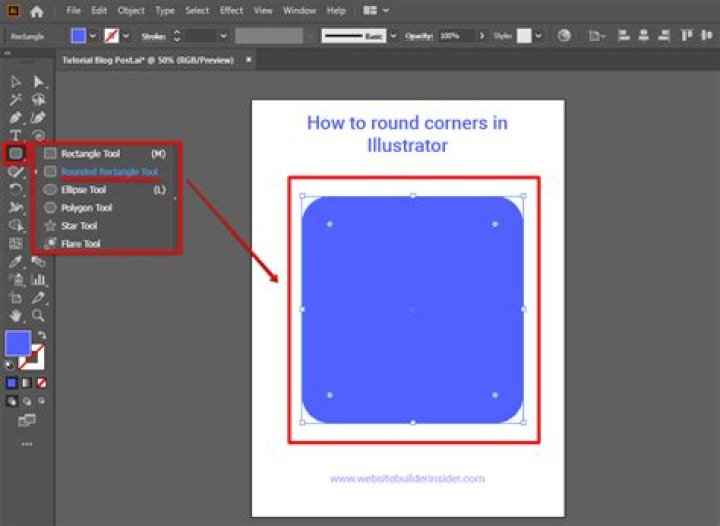
The Rounded Rectangle Tool provides an easy way to create rectangles with rounded corners.
Customization
The Rounded Rectangle Tool has several options on the shape and on the context toolbar to enable the radius of the corners to be controlled.
Settings
The following settings can be adjusted from the context toolbar:
- Single radius—when selected (default), allows you to modify all four corners simultaneously by setting one radius. If this option is off, you can set each corner radius individually and change corner type.
- Absolute sizes—by default, the corner radius is specified as a percentage of the object and scales as the object is resized. When selected, this option allows you to specify the corner radius in units. If the object is resized, the corner radius remains the same instead of scaling with the object.
- Corner—sets the style and radius of the rectangle's corners. You can choose a Rounded (fillet), Straight (chamfer), Concave (scallop) or Cutout option.
Show Rotation Centre—displays a movable rotation centre about which the shape can be rotated.
Hide Selection—when selected, the object's selection box is temporarily hidden when transforming the object. If this option is off, the selection box remains visible during transformation. The selected behaviour persists across all objects unless it is manually switched.
Reset Selection Box—after reshaping, rotating, or shearing the shape, this option resets the selection box to vertical.
Convert to Curves—converts the selected object into a series of connected lines and nodes.